We are here to help.
Frequently Asked Question – for members
- How do I access my members space
Once you have registered you will receive an activation key (which you will use for your first login)
Once you are loged in, click on your name (in the menu – top right )
Below you will find a left side menu – take a look around
Each menu item opens a new space with its own top menu specific to the chosen item
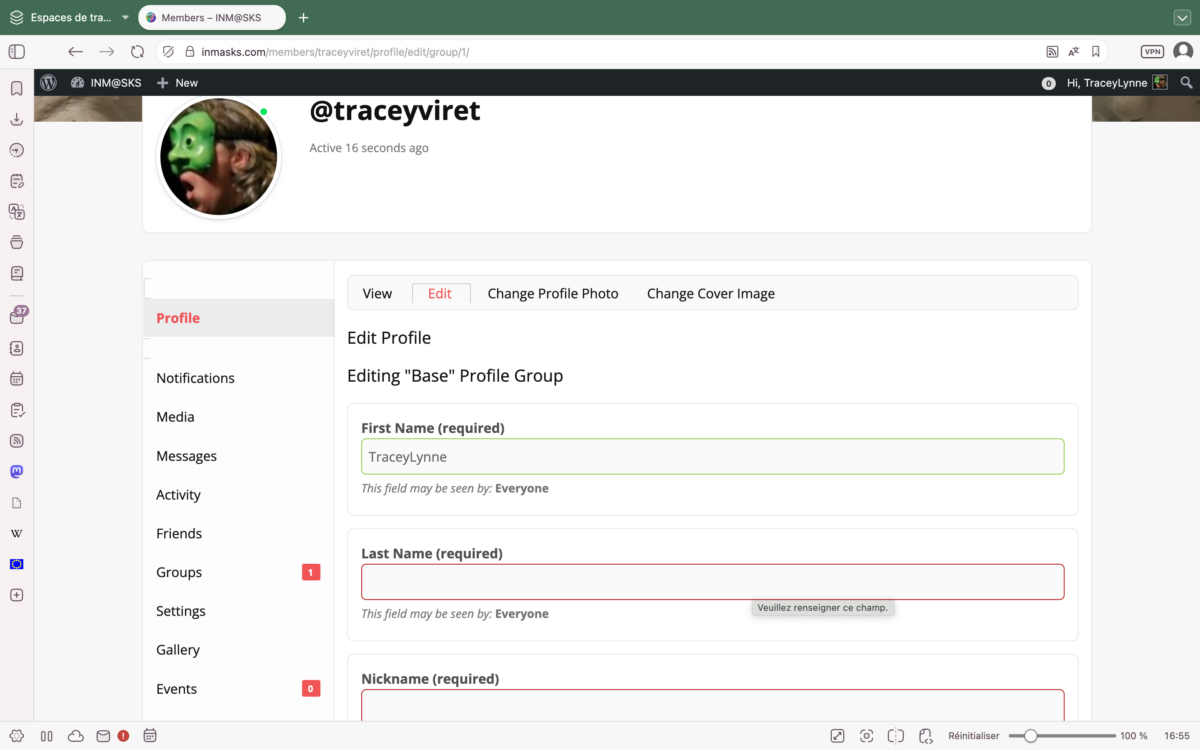
- How do I maximise my profile:
Check out your profile and edit if necessary. Make sure your Primary Skills are well presented (add to when you require new skills). Ensure that your skills are accurate as members will search for those skills in the Directory.
Include a Biography to provide professional context and help others understand your artistic “vision“.
Create galleries to show your work (Images and/ or documents)
Add your events to the website
- Navigate the Core Features:
Members (the Directory): you can use the search filters (skills/location) to find peers for “professional dialogue”.
Groups: specialised clusters you can ask to join or you can create a new one and invite others to join it.
Activity (Discussions) : this is where you can launch a discussion, post a question, inform, invite…
Events: check for upcoming events, (performances, exhibitions) … this space is for a more detailed presentation of up and coming events
Discussion: Encourage them to use the forum as the “engine” of the network to pose questions and share expertise.
Gallery: you can use Gallery to create private galleries (that you can share with friends and / or groups) or public galleries.
- Create an event
Click on “event ” to access the event space
Click on “my events” (in the section menu)
Click on the button “add new”, fill out the form, then submit
You can edit your event (modify, delete…)
If you activate the bookings
Fill out the form details, insert image… and press send.
Your event will be published after verification by the administrator (Tracey Boot)
Bookings are possible for INM@SKS members – you will need to check the “booking” box when you create your event and edit the details.
You will be notified by email of any bookings.
- Gallery
Gallery allows members to upload photos and documents directly to their activity streams (you have to have already loaded documents before writing in the news feed if you want to attach photos or documents…)
The actual limit for uploads (documents and images) is 10 GB, so you will either have to limit the number or reduce the weight/ size of the media before uploading.
- Our Ambition
Our Goal—Physical Meetings: the ultimate success of the digital interactions is to spark “concrete physical meetings” and lasting real-world partnerships.
To Support: use the contact page for technical issues or questions about posting.